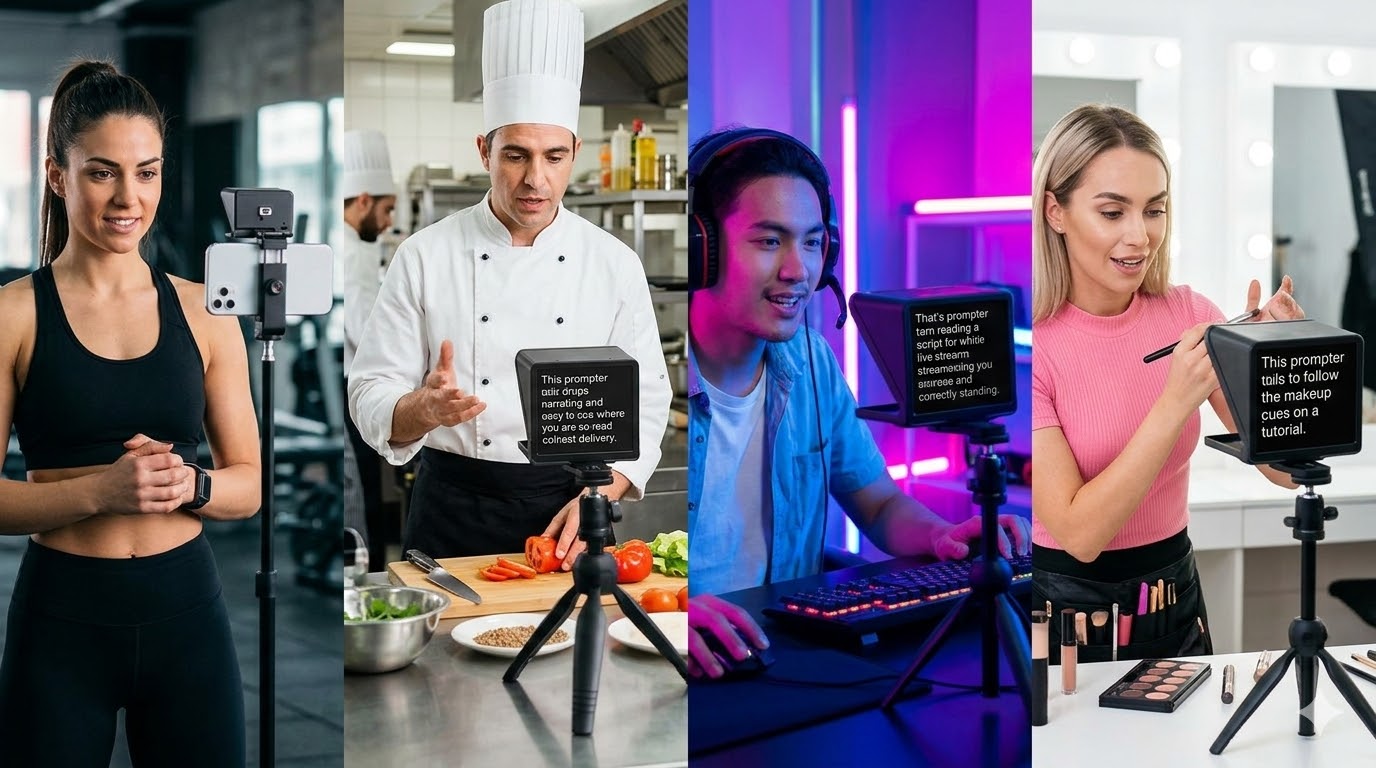
1. Voice-activated scroll — the feature that changes everything
Every teleprompter scrolls text. The question is what controls the scroll speed.
Fixed speed teleprompters scroll at a constant rate you set in advance. In theory you adjust it to match your speaking pace. In practice, your pace fluctuates constantly — faster during a high-energy point, slower when you're letting something land, paused before a key moment. Fixed speed averages this out and produces metronomic delivery that sounds rehearsed even when the content is good.
Voice-activated scroll inverts the relationship. The teleprompter listens to you speak and advances the script automatically as you read. Pause naturally and it waits. Speed up and it follows. The result is that your delivery controls the script instead of the script controlling your delivery.
For anyone recording videos, doing pitch practice, or running through a speech, this is the single feature most worth prioritising. It's the difference between sounding prepared and sounding like you're reading — even when the words are exactly the same.
One practical note: cloud-based voice recognition (the kind that sends your audio to a server for processing) is more accurate than offline recognition, which struggles particularly with technical vocabulary, names, and non-American English accents. Check which approach a teleprompter uses before committing to it.
2. Zoom background overlay — the feature remote workers need and don't know exists
The standard approach to using a teleprompter on a Zoom call is to put your script on a second monitor next to your camera. The problem is that your eyes are then looking at the second monitor, not the camera. Everyone on the call can tell you're reading something. The eye-line drift is subtle but persistent, and it breaks the credibility you were trying to build by being prepared.
Zoom background overlay solves this in a different way entirely. Instead of putting your script next to your camera, it renders your script as your virtual camera background. You see your script overlaid on your Zoom window. Your audience sees your actual background — not the script. Your eyes stay on the camera because that's where the text is.
This feature is specifically relevant if you: - Deliver presentations or pitches over video calls - Record interviews, podcasts, or panel discussions remotely - Run client-facing meetings where you need to stay on-message - Present at all-hands meetings or town halls
It works the same way in Microsoft Teams and Google Meet — any platform that supports virtual cameras will work.
Very few browser-based teleprompters offer this. It requires the tool to act as a virtual camera source, which most tools built for simple scroll-and-read use cases haven't implemented.
3. Built-in recording — the friction that kills your workflow
Here's the standard workflow for recording a video with a basic teleprompter:
1. Write your script in Google Docs or Notion 2. Paste it into your teleprompter 3. Open your camera app or Loom or OBS 4. Alt-tab to the teleprompter, hit record on the camera app, then start the scroll 5. Review the take, switch back to the teleprompter, restart
Every one of those context switches is a place the workflow falls apart — especially if you're doing multiple takes. You lose your place. The scroll settings reset. The recording app captures the wrong window.
Built-in browser recording collapses this entirely. You write your script, set your scroll, hit record and read. The take is captured in the same tab. You review it immediately. If you want another take, you restart from the same screen.
The practical impact: most people doing video production report cutting their recording time significantly when they switch to a tool with built-in recording. Fewer retakes, less setup, less time between a usable first take and a publishable final one.
For content creators who are already in the browser to write and research, removing the recording app from the workflow is the highest-leverage single change.
4. Script templates — the problem nobody talks about
Teleprompter tools sell themselves on features: scroll speed, font size, mirror mode. But the real reason most people stop using a teleprompter after the first few attempts isn't a feature problem — it's a content problem.
They sit down to record and don't know how to structure what they want to say. The blank script editor is as intimidating as a blank page. They write something that sounds good written down but feels stilted when read aloud. They abandon the take, close the tab, and go back to recording unscripted.
A script template library short-circuits this. Instead of starting from a blank page, you start from a structure: here's a YouTube video hook, here's the three-section sales pitch format, here's how to open a podcast episode. Replace the bracketed placeholders with your real details, read it aloud once to adjust the language, and you have a working script in under ten minutes.
Templates are particularly valuable for high-stakes one-off moments — job interviews, investor pitches, keynote speeches — where you're not a regular content creator and don't have an instinct for script structure. The template provides the scaffolding; you provide the specific story and substance.
Look for a template library that covers your specific use case, not just generic 'presentation' or 'video' templates. Role-specific templates (for job interviews, for real estate agents, for podcast hosts) are meaningfully better than category-level ones because they pre-fill the structural moves that work for that specific situation.
5. Multi-device sync — your phone as a remote, your tablet as a monitor
Professional teleprompter hardware costs thousands of dollars and involves beam splitters, dedicated monitors, and camera rigs. For most people, the feature they actually want from that setup is simpler: they want a phone in their hand to control scroll speed while they present, or a tablet in front of the camera showing the script while their laptop sits to the side.
QR code local network sync delivers this without any hardware. Scan the QR code on any device on the same wifi network, and it instantly connects to your teleprompter session as a remote control. From your phone you can adjust scroll speed, pause, restart, or advance to a section — all without touching the device displaying the script.
The practical difference from Bluetooth-based remotes: no pairing, no hardware purchase, no range limitation. The practical difference from cloud-based sync: no internet dependency, no latency, no data sent off-device.
For presenters, live events, and multi-camera setups, this feature matters a lot. For someone recording solo YouTube videos in a home office, it's nice to have but not critical.
6. Works on any device — the Android gap nobody mentions
Teleprompter Pro, one of the most highly-rated teleprompter apps, is available only on iPhone, iPad, and Mac. This is fine if you're in the Apple ecosystem. It excludes every Android phone user, every Windows laptop user, and every Chromebook user.
Browser-based teleprompters run on everything with a modern browser: Chrome on Android, Edge on Windows, Safari on iPhone, Firefox on Linux. No download, no platform restriction, no separate app for each device.
This matters practically in a few situations: - You're preparing for a video interview on a Windows work laptop - You want to use your Android phone as a monitor - You're presenting in a venue on a device that isn't yours and you can't install software - Your team uses a mix of devices and you want one tool that works for everyone
The no-download requirement compounds this. A browser teleprompter at a URL means zero setup time on any device. You don't need IT permissions. You don't need to remember a username and password. You open the tab and you're working.
7. Pricing structure that matches how people actually use teleprompters
Look at the search queries that bring people to teleprompter tools:
- 'teleprompter for job interview tomorrow' - 'free teleprompter for pitch' - 'online teleprompter for speech this week'
The word 'tomorrow' and 'this week' appear constantly. These are not people building a recurring video production workflow. These are people with one specific high-stakes moment in the next 24–72 hours who need a tool right now.
A $15–19/month subscription is the wrong offer for this person. They'll either pay for a month and cancel, or they'll use the free tier of whatever tool they find and tolerate the limitations.
A day pass — typically around $4.99 for 24 hours of full access — is exactly right. It matches the actual use case: one take, one moment, one day. Full features available. No subscription to manage. Low enough that it's an impulse purchase, not a considered decision.
If you do use a teleprompter regularly — weekly videos, regular presentations, recurring content production — a monthly or annual subscription makes more sense. The annual subscription typically costs significantly less per month than monthly billing and is worth it once you're using the tool more than a few times a month.
8. Stage monitor and live cue messaging — for live events and productions
This section is specifically for people running live events, broadcast productions, or complex multi-person recordings. If you're a solo content creator, skip ahead to the FAQ.
In broadcast production, a confidence monitor is a large screen at floor level showing the script to a presenter standing on stage. A separate cue system lets a director or floor manager send real-time messages to the presenter's earpiece or monitor: 'slow down', 'wrap up', 'two minutes remaining'.
Stage monitor mode in a browser teleprompter replicates the confidence monitor: large text, high contrast, full-screen display, designed for presentation at distance. It works on any screen connected to any device on the same network — no dedicated monitor hardware required.
Live cue messaging lets a director or producer connected to the same session send text cues to the presenter's screen in real time. 'Slow down', 'wrap up now', or a custom cue — all delivered without interrupting the take or using a separate communication channel.
For event producers and small broadcast operations, this replaces dedicated hardware that costs significantly more and requires a technician to operate. For corporate presentations, it's the difference between a presenter going off-script and burning through their time, and a director keeping the show on schedule.
Which features do you actually need?
Here's a simple way to think about it:
If you're a content creator (YouTube, TikTok, Reels, podcasts): voice scroll and built-in recording are the two non-negotiables. Script templates will save you significant time on each video. Everything else is optional.
If you present on Zoom or Teams: Zoom background overlay is the one feature that changes the most. Combine it with voice scroll for delivery that sounds natural.
If you have one high-stakes moment coming up (job interview, pitch, speech): look for a day pass pricing option, a script template that matches your use case, and voice scroll so you can rehearse at your natural pace. You don't need team features or hardware integration.
If you run live events or productions: stage monitor and live cue messaging are the features that matter. Browser-based means you can use any display on any device without dedicated hardware.
If you're just starting out: no-download, browser-based, free to start. Get a tool that removes all the friction between you and your first take. Features can always be unlocked later.