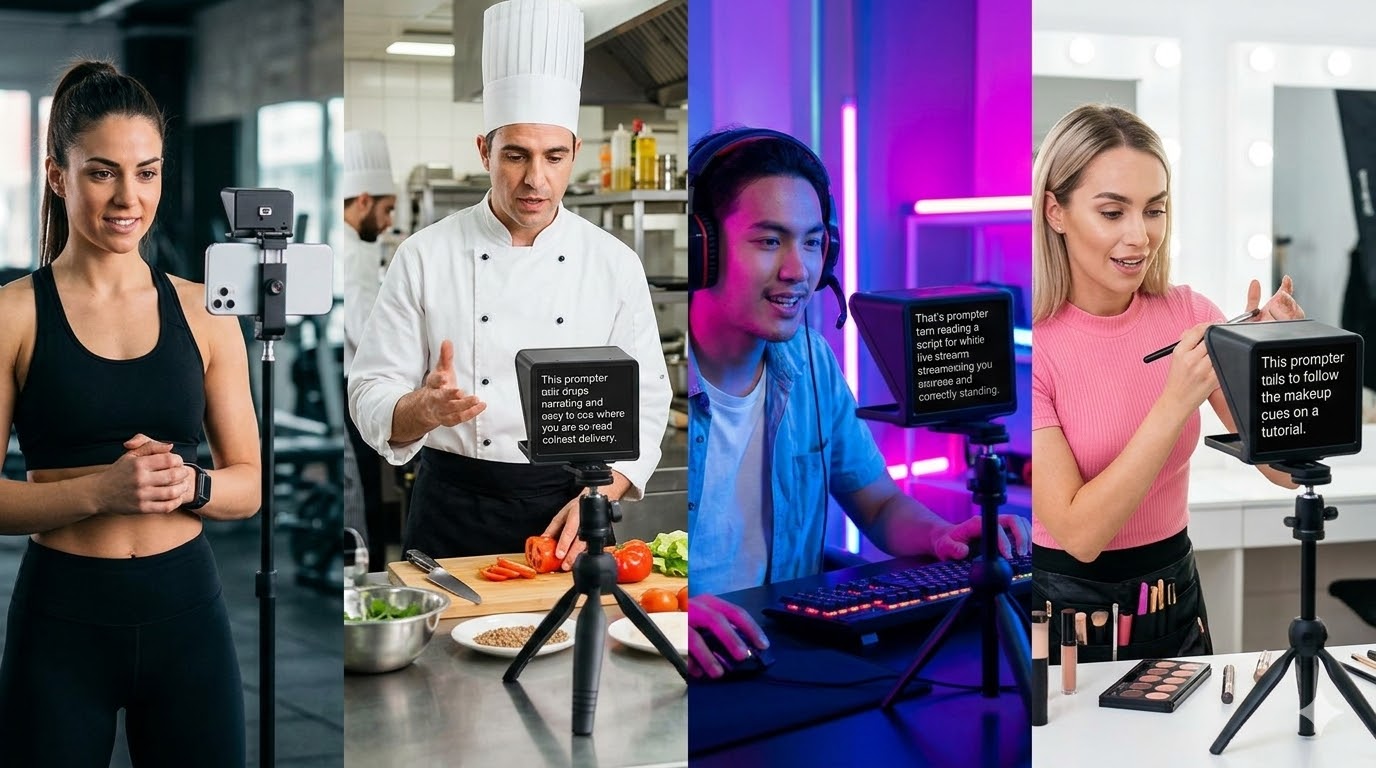
Whether you're a TikTok creator, pastor, CEO, real estate agent, or first-time podcaster — this is the only teleprompter guide you need. Browser-based, free, no app required.
One guide covering every teleprompter use case: YouTube, TikTok, Zoom, podcasts, churches, real estate, investor pitches, keynotes, job interviews, and more. No download. Works on any device.
A teleprompter used to cost thousands of dollars and live in broadcast studios.
Today, the SyncedCue vs">best free teleprompter is your browser.
This guide covers every use case — from TikTok to investor pitches — and every
device, so you can find exactly what you need and start reading on-camera
with confidence today.
1. Content Creators — YouTube, TikTok & Podcasts
Whether you're filming a 60-second TikTok or a 20-minute YouTube tutorial,
reading from a script is faster, less stressful, and produces fewer retakes.
SyncedCue works on the same device you're already holding — no extra gear required.
YouTube rewards watch time, and watch time rewards confident, fluent delivery.
The single biggest mistake new creators make is winging it — stumbling through takes,
losing their thread, and spending hours in post cutting out filler words.
How to set it up: Open SyncedCue on a laptop or tablet positioned
just below your camera lens. Set font size to 48–60px so you can read without
squinting. Use voice scroll so your eyes stay on the lens, not on a clicker.
For tutorial videos, break your script into short sections with clear H2 headers
so you can pause between segments naturally.
Best scroll speed for YouTube: 130–150 WPM for tutorials and
educational content; 150–170 WPM for vlogs and fast-paced commentary.
Use the WPM Calculator to calibrate.
Script tip: Use the Content Script Generator
to draft your video script in seconds. It formats for on-camera delivery automatically —
short sentences, clear transitions, no jargon.
TikTok's algorithm rewards authenticity and energy, not perfection — but that
doesn't mean you should improvise. The creators who post consistently and grow
fastest write their scripts first, then deliver them with energy.
How to set it up: Open SyncedCue in your phone browser.
Prop the phone next to your recording device at eye level — a ring light stand works
perfectly. Record your TikTok on a separate phone or camera while reading from
SyncedCue on the propped device.
Best scroll speed for TikTok: 150–180 WPM. The faster energy matches
short-form video. If your content is educational or slower-paced (e.g. a "story time"),
drop to 130–150 WPM.
Script tip: Use the TikTok Script Generator
to write hooks, body, and CTA in the format the algorithm rewards.
Most podcasters script their intro, outro, and ad reads — and then improvise the
middle. That's a smart hybrid approach. A teleprompter handles the parts where
precision matters (your hook, your sponsor message, your CTA) so you can be
completely present for the conversation.
How to set it up: Position a tablet or laptop at eye level
in front of your microphone setup. Use SyncedCue's large font mode so you can
glance at it naturally during pauses without obviously looking away.
Best scroll speed for podcasts: 120–140 WPM. Podcast delivery
is conversational — slower than YouTube, much slower than TikTok.
2. Business & Professional — Keynotes, CEO Videos, Real Estate & Investor Pitches
Professional use cases demand precision. A fumbled investor pitch or an unclear
all-hands message can cost real money. A teleprompter turns a prepared script
into a polished, confident delivery every time.
Teleprompter for Keynote Speakers
Keynote speakers who use teleprompters aren't cheating — they're prepared.
Every major conference speaker, from TED to Davos, works from a script.
The goal is to make it look unrehearsed while delivering every key
message exactly as planned.
Setup: Use a laptop or large tablet positioned at the front of the
stage or just below camera level for recorded keynotes. Set scroll speed to
110–130 WPM to match the measured, impactful pace of keynote delivery.
Script tip: Use the Keynote Script Generator
to draft a speech with a strong opening, three core ideas, and a memorable close.
Teleprompter for CEOs & Executives
CEO communications — all-hands videos, board updates, company announcements —
need to be clear, authoritative, and human. A teleprompter lets executives
deliver a polished message without the cold, stiff look of reading off paper.
Setup: Position SyncedCue on a laptop screen at the same height
as your webcam. Use large font (60px+) and set scroll speed to match natural
executive speech: 120–140 WPM.
Teleprompter for Real Estate Agents
Video is now the primary channel for real estate marketing — property walkthroughs,
market update videos, client testimonial narrations, and social content.
Agents who show up on camera consistently win more listings.
A teleprompter removes the biggest barrier: not knowing what to say on camera.
Script your property highlights, neighborhood facts, and CTA, then deliver them
directly to your phone camera without hesitation.
Setup: Use SyncedCue on a second phone or tablet propped next to
your recording device. For outdoor shoots, increase font size to 72px+ so you
can read in bright light.
Teleprompter for Investor Pitches
Whether you're recording a Loom pitch for an angel investor or presenting live on
Zoom to a VC panel, your words need to be precise. Valuations, traction numbers,
market size claims — stumbling on these details erodes confidence.
Script your pitch, practice with the teleprompter until the delivery feels natural,
then deliver it clean. Your investor will see a founder who knows their numbers.
Sales teams use teleprompters for personalized video outreach (Loom, Vidyard),
product demo recordings, and onboarding videos. A scripted video that sounds
natural converts better than an improvised one that wanders.
VP Sales and revenue leaders often record video coaching for their teams,
present QBRs on Zoom, and appear in company marketing. A teleprompter
ensures every talking point lands — especially critical when quota numbers
or strategic direction are on the line.
Teleprompter for Content Agencies
If you're producing video content for multiple clients, SyncedCue's
browser-based model means no per-seat app licenses. Any team member
opens it on any device, pastes the client script, and records.
No setup. No IT ticket. No download.
The camera is everywhere now. Zoom calls, virtual presentations, recorded
asynchronous updates — your on-camera presence is part of your professional brand.
A teleprompter is the quiet competitive advantage most people don't know about.
Teleprompter for Zoom
The best Zoom presentations are scripted. Not because spontaneity is bad —
but because a prepared script with clear transitions, crisp language, and
deliberate pauses sounds better than improv.
Setup: Open SyncedCue in a browser window and resize it to sit
just beneath or beside your webcam feed on the same monitor. Most participants
won't notice — your eyes will be close to the camera line.
Video job interviews are now standard for first and second rounds at most companies.
A teleprompter lets you have your key talking points — your story, your
accomplishments, your questions for the interviewer — visible without breaking
eye contact with the camera.
Best practice: Don't write full sentences — write bullets.
Full sentences make you sound like you're reading. Bullets keep delivery natural
while ensuring you hit every point. Script your intro (tell me about yourself),
your 2–3 key accomplishments, and your closing questions.
Remote workers who communicate well on camera get promoted faster.
Use SyncedCue for async video updates, Loom messages, team announcements,
and recorded presentations — anything where you want to look polished
without spending 10 takes getting it right.
Pastors and church communicators use teleprompters for recorded sermons,
online service videos, and announcement recordings. SyncedCue works on a
tablet placed on the pulpit or beside a camera — no expensive studio hardware required.
Setup for churches: Use a large tablet (iPad or Android 10"+)
positioned at the pastor's eye level. Set font to 64px+, dark background,
white text for readability under stage lighting. Slow scroll speed to
110–130 WPM for a sermon pace.
Script tip: Use the Speech Script Generator
to draft sermon outlines, homilies, or service scripts.
Teleprompter for News Anchors & Broadcast Journalists
Professional news anchors have always used teleprompters — it's the tool of the trade.
For independent journalists, YouTube news creators, corporate communications teams,
and newsletter video editions, SyncedCue provides a professional alternative
without the broadcast hardware cost.
Best scroll speed for news delivery: 150–170 WPM. Broadcast
delivery is faster than conversational speech — clear, crisp, and authoritative.
Teleprompter for Wedding Officiants
Wedding officiants — both professional and friend-of-the-couple officiants —
use teleprompters to deliver ceremonies confidently without burying their face
in a paper script. SyncedCue on a tablet tucked inside a ceremony booklet or
placed discreetly on a table works perfectly.
Script tip: Use the Speech Script Generator
for ceremony scripts — it handles opening remarks, vows prompts, ring exchange,
and pronouncements.
SyncedCue is browser-based, so it works on every device you already own.
Here's how to get the best setup on each.
iPhone Teleprompter
Open SyncedCue in Safari on your iPhone. For the best experience, add it to
your home screen (Share → Add to Home Screen) so it opens full-screen like
a native app. Use landscape mode for wider text display.
Best font size: 48–56px at arm's length.
Open SyncedCue in Chrome on your Android phone. Works on all Android versions
and manufacturers — Samsung, Pixel, OnePlus, etc. Add to home screen via
Chrome's "Add to Home Screen" option for a full-screen experience.
iPad is the most popular teleprompter device for a reason: the large screen lets
you read from further away, keeping your eyes near the camera line. Open Safari,
go to SyncedCue, and add to home screen. Set font to 64–72px for reading at
1–2 feet distance.
On a Mac, open SyncedCue in Safari or Chrome. The ideal Mac setup is to open
SyncedCue in a browser window sized to sit just below your MacBook webcam.
For external monitors, use a second screen running SyncedCue positioned
behind your camera.
Open SyncedCue in Chrome, Edge, or Firefox on your Windows PC. The same
second-screen tip applies: use a monitor behind your camera for a true
broadcast-style setup, or snap the SyncedCue window close to your webcam
on your primary display.
Chromebooks are perfect teleprompter devices — they boot fast, run Chrome natively,
and are often used in content creation setups for their portability and low cost.
Open SyncedCue in Chrome. Pin the tab for fast access.
When your device is propped next to a camera and you can't reach the screen,
use SyncedCue's remote control feature. Connect a second device over the same
Wi-Fi network to start, stop, and adjust scroll speed hands-free.
Works with Bluetooth clickers and keyboard shortcuts too.
The hardest part of using a teleprompter is writing the script.
SyncedCue's built-in AI generators handle that — choose your format,
fill in the basics, and get a teleprompter-ready script in seconds.
Keynote Speech Generator
— Opening hook, three key ideas, strong close. For conference talks and event presentations.
The Teleprompter Speed Tester runs you
through a standardized passage and gives you an exact WPM reading.
Use it before any important recording to confirm your scroll speed setting
is calibrated correctly.
8. SyncedCue vs. Other Teleprompters
There are several teleprompter options on the market. Here's a plain-language
comparison of the most common alternatives.
SyncedCue vs. PromptSmart
PromptSmart is a popular iOS and Android app with voice-tracking scroll technology.
It requires a paid app download and a subscription for full features.
SyncedCue offers voice scroll in the browser — no download, no subscription
for core features, works on any device including Windows, Mac, and Chromebook
(where PromptSmart is unavailable).
Verdict: SyncedCue is the better choice for cross-device use
and users who don't want to install an app.
Speakflow is a browser-based teleprompter focused on sales teams and
enterprise use, with a higher price point. SyncedCue offers a comparable
browser-based experience with voice scroll at a more accessible price point
for individuals and small teams.
CuePrompter is a free, bare-bones online teleprompter. It works, but lacks
voice scroll, script generators, speed testing tools, and mobile optimization.
SyncedCue is the modern alternative for creators who want more than
a plain scrolling text box.
Sendspark is a video messaging platform, not a dedicated teleprompter.
It offers basic in-app teleprompter functionality for sales reps recording
personalized videos. SyncedCue is purpose-built for teleprompter use
with more script and speed control features.
Clipchamp is a video editing tool — it's not a teleprompter. Some creators
use its basic teleprompter overlay feature while recording. For anything
beyond a quick one-take video, SyncedCue's dedicated teleprompter
features (voice scroll, WPM calibration, script import, remote control)
are significantly better.
Yes. The core teleprompter — voice scroll, speed control, large text, script import — is completely free. No credit card, no download, no account required to try it.
Do I need to download an app?
No. SyncedCue runs entirely in your browser. Open it in Safari, Chrome, or Firefox on any phone, tablet, or computer.
What is the best teleprompter speed (WPM)?
Most people speak comfortably at 130–160 WPM. TikTok creators often push 150–180 WPM. Keynote speakers and pastors typically slow to 110–130 WPM. Use the free WPM calculator to find your natural pace.
Can I control the teleprompter remotely?
Yes. SyncedCue supports remote control via a second device — useful when your phone is propped next to a camera and you need a partner or Bluetooth clicker to adjust speed.
Does SyncedCue work on iPhone and Android?
Yes. Open syncedcue.com in Safari (iPhone/iPad) or Chrome (Android) and it works instantly. No app store download needed.
What is voice scroll?
Voice scroll uses your device microphone to detect your speaking pace and automatically adjust scroll speed to match — no hands needed.
How does SyncedCue compare to PromptSmart?
PromptSmart requires a paid iOS/Android app download. SyncedCue works instantly in any browser, on any device, with no download or subscription required for core features.
Can I use a teleprompter for a job interview?
Yes — for video interviews specifically. Position the teleprompter just above or below your webcam so your eyes stay close to the camera line. Keep bullets, not full sentences, so your delivery stays natural.
Is a teleprompter obvious on Zoom?
Not if you place it correctly. Position SyncedCue on the same monitor as your camera, set text large enough to read without leaning in, and keep your scroll speed natural. Most viewers can't tell.
Can churches use a teleprompter?
Absolutely. Pastors use teleprompters for sermons, announcements, and recorded messages. SyncedCue works on a tablet or laptop placed on the pulpit or beside a camera.
Ready? It's free. No download required.
Open SyncedCue in your browser right now — on your phone, tablet, or computer.
Your first teleprompter session is 30 seconds away.
Yes. The core teleprompter — voice scroll, speed control, large text, script import — is completely free. No credit card, no download, no account required to try it.
Do I need to download an app?
No. SyncedCue runs entirely in your browser. Open it in Safari, Chrome, or Firefox on any phone, tablet, or computer.
What is the best teleprompter speed (WPM)?
Most people speak comfortably at 130–160 WPM. TikTok creators often push 150–180 WPM. Keynote speakers and pastors typically slow to 110–130 WPM. Use the free WPM calculator to find your natural pace.
Can I control the teleprompter remotely?
Yes. SyncedCue supports remote control via a second device — useful when your phone is propped next to a camera and you need a partner or Bluetooth clicker to adjust speed.
Does SyncedCue work on iPhone and Android?
Yes. Open syncedcue.com in Safari (iPhone/iPad) or Chrome (Android) and it works instantly. No app store download needed.
What is voice scroll?
Voice scroll uses your device microphone to detect your speaking pace and automatically adjust scroll speed to match — no hands needed.
How does SyncedCue compare to PromptSmart?
PromptSmart requires a paid iOS/Android app download. SyncedCue works instantly in any browser, on any device, with no download or subscription required for core features.
Can I use a teleprompter for a job interview?
Yes — for video interviews specifically. Position the teleprompter just above or below your webcam so your eyes stay close to the camera line. Keep bullets, not full sentences, so your delivery stays natural.
Is a teleprompter obvious on Zoom?
Not if you place it correctly. Position SyncedCue on the same monitor as your camera, set text large enough to read without leaning in, and keep your scroll speed natural. Most viewers can't tell.
Can churches use a teleprompter?
Absolutely. Pastors use teleprompters for sermons, announcements, and recorded messages. SyncedCue works on a tablet or laptop placed on the pulpit or beside a camera.